JPEG, PNG, WebP Metadata: What Each Format Hides and How to Clean It

What's hiding in your photos right now
You just snapped a picture of your new apartment keys on the coffee table. You post it to Instagram or send it to a friend via WhatsApp. You see the photo. Your friends see the photo. But the file itself is carrying a silent payload that neither of you can see with the naked eye.
Inside that digital file are coordinates pinpointing exactly where you live, the serial number of the phone you used to take the shot, the exact time you were there, and even the software you used to edit the background blur. This isn't science fiction; it is standard behavior for almost every camera and smartphone made in the last two decades.
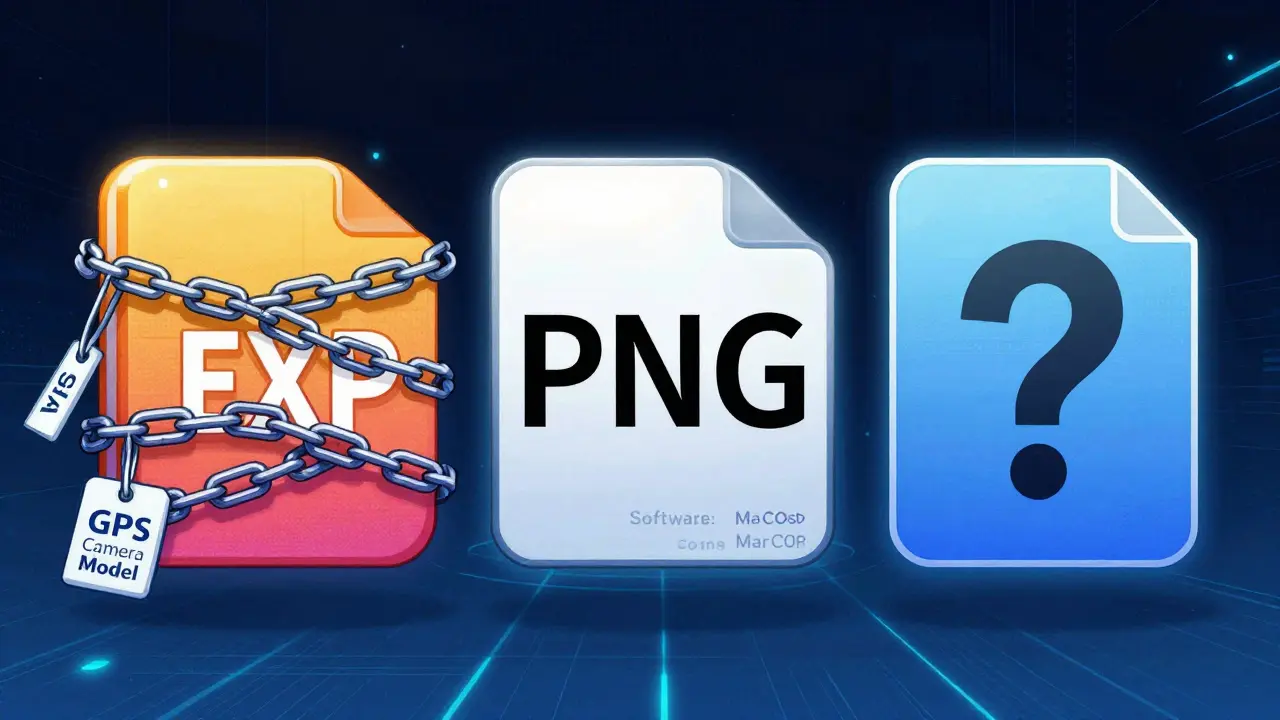
The three dominant formats on the web-JPEG, PNG, and WebP-all handle this hidden information differently. Some hide it in plain sight, while others bury it deep in the code structure. Understanding what each format hides is the first step to protecting your privacy before you click "send".
JPEG: The heavyweight champion of hidden data
If you own a smartphone, you are likely shooting in JPEG (or its modern cousin, HEIC). JPEG was designed in the early 1990s as a way to compress photos for storage, but it quickly became the home for EXIF data (Exchangeable Image File Format). Think of EXIF as a digital luggage tag attached to your photo.
When you take a photo with an iPhone or Android device, the camera app automatically writes dozens of tags into the file. A typical JPEG contains:
- GPS Coordinates: Latitude and longitude accurate to within a few meters.
- Device Fingerprint: Camera make, model, lens type, and often the unique serial number of the device.
- Timestamps: When the shutter opened, when the file was created, and when it was last modified.
- Technical Settings: ISO speed, aperture, shutter speed, and focal length.
This data lives in specific segments of the JPEG file, primarily the APP1 segment. If you upload a raw JPEG from your phone to a public forum without cleaning it, anyone who downloads that file can open it in a simple viewer and find out exactly where you were standing when you took the picture. This is why journalists and privacy advocates warn against sharing raw files from social media platforms that don't strip this data.
PNG: Not as innocent as it looks
Many people assume that because PNG is often used for screenshots and graphics rather than camera photos, it is safe from privacy leaks. That is a dangerous assumption. While PNGs rarely contain GPS data by default (unless explicitly added by specialized software), they have their own secrets.
PNG uses a chunk-based structure. Inside these chunks, you will often find text strings that reveal:
- Software Traces: Tags like "Software: macOS 13.3" or "Creator Tool: Adobe Photoshop" tell viewers exactly what hardware and programs you use.
- Author Comments: Designers sometimes leave notes inside PNG files intended for other designers, which end up leaking to the public if not removed.
- Color Profiles: ICC profiles embedded in PNGs can identify specific monitor calibration workflows.
For a casual user, a screenshot of a bank statement saved as a PNG might not have GPS coordinates, but it could still carry metadata linking it back to your specific computer session. It is less risky than a JPEG from a phone camera, but it is certainly not invisible.
WebP: The wildcard of the modern web
Google introduced WebP around 2010 to offer better compression than JPEG. As browsers adopted it, the question became: does WebP keep the secrets of the original JPEG?
The answer depends entirely on how the image was converted. WebP supports EXIF, XMP, and ICC chunks. If you convert a JPEG to WebP using a professional tool or a Content Delivery Network (CDN) that preserves metadata, the WebP file will contain the exact same GPS coordinates and camera serial numbers as the original.
However, many automated web tools strip metadata during conversion to save space. This creates a false sense of security. You cannot rely on the format itself to protect you. A WebP downloaded from one site might be clean, while a WebP from another site carries a full history of your location and device. Always inspect WebP files just as rigorously as JPEGs.
How to inspect what is hidden
Before you can clean a file, you need to know what is inside. There are several ways to do this, ranging from command-line tools for developers to browser-based inspectors for everyone else.
For technical users, ExifTool is the industry standard. It runs in the terminal and provides a comprehensive list of every tag in a file. For the average person, online viewers like Jeffrey’s EXIF Viewer or ExifMeta allow you to drag and drop an image to see its guts.
A more convenient option is a dual-mode tool that lets you view and remove data in the same interface. For example, Vaulternal's image metadata remover offers an inspector mode. You upload a photo, and it displays the hidden fields-GPS, camera model, timestamps-right in the browser. This transparency helps you understand exactly what risk you are taking before you decide to scrub the file.
Methods to clean your images safely
Once you know what is hiding in your files, you need to remove it. There are three main approaches to stripping metadata, each with different trade-offs regarding privacy and convenience.
1. Browser-based removal (No Upload)
This is the safest method for sensitive documents. Tools that process images client-side run entirely within your browser using JavaScript and WebAssembly. The file never leaves your device. You can verify this by opening your browser's network tab; you will see no outbound requests for the image file.
These tools typically re-save the image without recompressing it, meaning the visual quality remains identical to the original. They strip EXIF, IPTC, and XMP data instantly. Because there is no server involved, there is zero risk of your private photos being stored on a cloud database. This approach is ideal for journalists, activists, or anyone sending sensitive personal photos.
2. Command-line automation
If you are a developer or manage hundreds of images, manual cleaning is impossible. In this case, command-line tools are essential. Using ExifTool, you can run a single command like `exiftool -all= -overwrite_original image.jpg` to wipe all metadata from a file. Similarly, ImageMagick's `-strip` option removes metadata during conversion.
This method is powerful but requires technical knowledge. One mistake in the script can corrupt files or fail to remove specific chunks like PNG text blocks. It is best suited for batch processing in secure environments.
3. Social Media and Messaging Apps
Platforms like WhatsApp, Signal, and Instagram generally strip most EXIF data when you send a photo through their apps. They do this to save bandwidth and protect user privacy. However, relying on third-party platforms is risky. Their policies change, and they may retain certain data for internal processing. Furthermore, if you share a link to an image hosted elsewhere, or if you email the file as an attachment, the metadata remains intact. Never assume the platform has your back; clean the file yourself before uploading.
Best practices for a privacy-first workflow
Protecting your digital footprint doesn't require becoming a cybersecurity expert. It just requires building a few habits into your daily routine.
- Disable Location Services for Cameras: On both iOS and Android, you can go into settings and revoke location access for your camera app. This prevents new photos from recording GPS coordinates in the first place.
- Separate Masters from Distributors: Keep your original, high-quality photos with full metadata in a secure, local archive. When you share images online, always export a "distribution" version with stripped metadata.
- Inspect Before Sending: Make it a habit to check any image you plan to publish publicly. Even screenshots can leak software versions and system info.
- Use Client-Side Tools: When possible, use tools that process files locally on your machine. This ensures that your private images are never transmitted over the internet to a remote server.
The technology behind image formats has evolved significantly since the 1990s, but the core principle remains the same: pixels are visible, but metadata is invisible. By understanding how JPEG, PNG, and WebP store this hidden data, and by using reliable methods to clean it, you maintain control over your personal information in an increasingly transparent digital world.
Does converting a JPEG to PNG remove metadata?
Not necessarily. Many conversion tools preserve metadata unless explicitly told otherwise. While PNGs typically don't store GPS data by default, they can still hold text chunks, software traces, and color profiles. You must actively strip the metadata during or after conversion to ensure it is gone.
Can I see the metadata in my photos without installing software?
Yes. There are several browser-based tools that allow you to upload an image and view its EXIF, IPTC, and XMP data. These tools process the file locally in your browser, so you don't need to install anything. Look for tools that emphasize "client-side" processing for maximum privacy.
Do social media platforms strip all metadata?
Most major platforms like Instagram, Facebook, and WhatsApp strip most EXIF data, including GPS coordinates, when you upload an image. However, this is not guaranteed across all features or third-party integrations. Additionally, if you share a direct file link or email an attachment, the metadata remains. It is safer to strip metadata yourself before uploading.
Will removing metadata affect the quality of my image?
No. Metadata is separate from the pixel data. Properly stripping metadata should result in a file that looks identical to the original. Some tools recompress the image, which can slightly reduce quality, but advanced tools re-save the file without recompression, preserving the exact visual fidelity.
What is the difference between EXIF, IPTC, and XMP?
EXIF stores technical camera data like GPS, timestamps, and settings. IPTC focuses on editorial information like captions, keywords, and copyright. XMP is a flexible framework that can store both technical and editorial data, often used by editing software like Lightroom to record adjustment histories. All three can contain sensitive personal information.